Free Chrome Web Store

Chrome extension

Pro Shot — Screenshot, screen recorder & full page capture

Capture the visible area, a full page, or a custom region, edit with text, shapes, and blur, then export as PNG, JPEG, or PDF — or record your tab, window, or entire screen. One free tool for screenshots and screen video.

Overview

Capture, edit, and record — without leaving your browser

Pro Shot is an all-in-one capture workspace: grab any part of any page, refine the image with a built-in editor, then save as PNG, JPEG, or PDF — or record the current tab, a window, or your entire screen.

Most screenshot tools stop at "save PNG." Screen recorders are separate apps. Pro Shot brings both into a single lightweight toolbar: precise capture (visible, full page, or region), a real editor with blur and annotations, and video recording for tabs, windows, or full screen. Whether you're filing a bug, saving a receipt, preparing a tutorial, or sharing a visual with your team, Pro Shot takes you from capture to export in seconds.

  • Three capture modes — visible area, full page (scroll & stitch), or drag-to-select region
  • Built-in editor — text, notes, shapes, arrows, highlights, and blur
  • Blur sensitive data — hide passwords, emails, and personal info before sharing
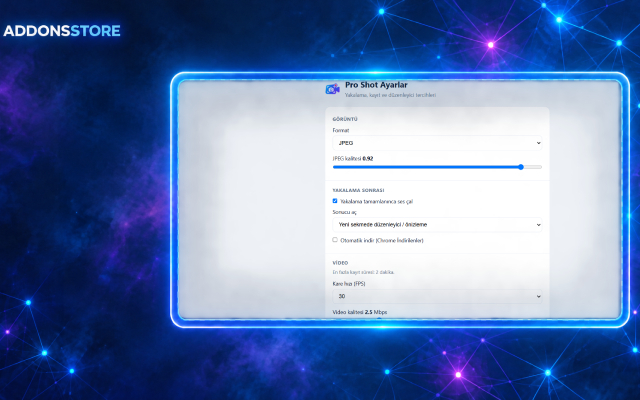
  • Export as PNG, JPEG, or PDF — pick per capture or set a default
  • Print or email directly from the preview window
  • Screen recording — current tab, selected window, or entire screen
  • Custom keyboard shortcuts for visible, full page, and region capture
  • 100% local processing — nothing uploaded, no account, no watermarks
  • Manifest V3, no remote code, no tracking

Three ways to capture screenshots

Every workflow starts with the right framing. Pro Shot gives you three capture modes and lets you pick per action — no digging through menus:

  • Visible area — one click grabs exactly what's on screen right now. Perfect for quick shares and bug reports.
  • Full page — automatically scrolls and stitches an entire webpage into one seamless image. Ideal for long articles, invoices, receipts, terms pages, and documentation.
  • Region select — draw a custom rectangle around any part of the page for a precise, clean crop.

Assign a keyboard shortcut to any mode so capture never interrupts your flow.
Capturing the visible area of a webpage with Pro Shot
Full page screenshot capture in progress

Built-in editor — no extra tools needed

The preview window is a real editor, not a dead-end save dialog. Refine the image immediately after capture, right inside the browser:

  • Add text, notes, and labels to point things out
  • Draw shapes, arrows, and lines to guide the eye
  • Highlight important details with color
  • Blur or hide sensitive information — passwords, emails, order numbers, personal data
  • Crop, resize, and fine-tune before saving

No need to open Photoshop, Paint, or any external editor. Everything happens before the file ever hits your disk.

Export and share instantly

Once your screenshot is ready, choose how it leaves the browser:

  • Save as PNG — lossless, ideal for UI and text
  • Save as JPEG — smaller files for photos and quick shares
  • Save as PDF — perfect for reports, invoices, and printing
  • Print directly from the preview window
  • Send via email in one click
  • Copy to clipboard for fast pasting into chat, docs, or tickets

Screen recording — tab, window, or full screen

Pro Shot also records video, so you don't need a second extension for walkthroughs:

  • Record the current tab — ideal for web app demos, walkthroughs, and bug reports where only the page matters
  • Record a selected window — great for tutorials, presentations, and multi-app workflows
  • Record the entire screen — perfect for full workflow recordings and live demos

Each time you start a recording, you pick the source. Chrome's own source picker handles screen and window selection, so nothing is captured without your explicit consent.

Custom keyboard shortcuts

Capture without ever touching the toolbar. Assign your own shortcuts for visible area, full page, and region capture in the extension settings, then trigger them from any page.

Private, free, and secure

Pro Shot is built to stay out of your way and out of your data:

  • 100% free — no subscriptions, no hidden fees, no premium tier for core features
  • No account required — install and start capturing immediately
  • No watermarks — screenshots and videos stay clean
  • All processing happens on your device — nothing is uploaded to external servers
  • Captures stay local unless you choose to export, download, or share them
  • Manifest V3 compliant — no remote code, no tracking, no telemetry

Works everywhere you need it

Pro Shot works on any HTTP/HTTPS page across the web. Some Chrome internal pages (like chrome://, the Chrome Web Store, and certain browser settings pages) cannot be captured due to browser security restrictions — this is a Chrome limitation, not a Pro Shot one.

Typical workflow

  1. Open the page you want to capture or record.
  2. Pick a mode: visible, full page, or region — or start a recording.
  3. Refine in the built-in editor: annotate, highlight, blur, crop.
  4. Export as PNG, JPEG, or PDF — or email, print, or copy.

Who uses Pro Shot

  • Developers filing clear bug reports with annotated screenshots
  • Designers sharing UI feedback with blur for unreleased features
  • Teachers and trainers recording tab walkthroughs and demos
  • Support teams capturing error states and attaching them to tickets
  • Shoppers and users saving receipts, invoices, and order confirmations as PDF
  • Anyone who captures their screen daily and wants one tool instead of three

One toolbar, three capture modes, a real editor, and full screen recording — free, private, and fast.

Screenshots

Capture, edit, export & record

Visible area, full page, region select, the built-in editor, export options, and screen recording — as shown in the extension UI.
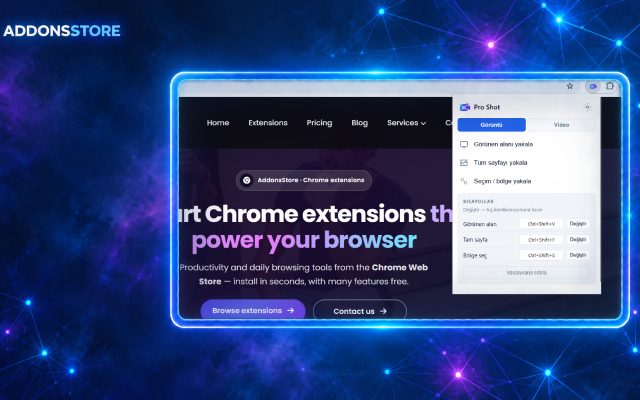
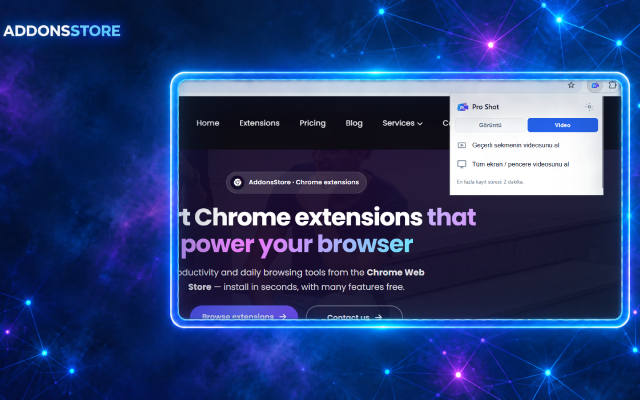
Capturing the visible area of a webpage with Pro Shot
Full page screenshot capture with scroll and stitch
Region selection overlay for custom area screenshots
Built-in editor with text, shapes, and blur tools
Export options: PNG, JPEG, PDF, print, and email
Features

Built for real capture workflows

Screenshots, editing, and screen recording in one tool — not three extensions and a desktop app.

Three capture modes

Visible area, full page (scroll & stitch), or drag-to-select region — pick the right framing per capture.

Built-in editor

Add text, notes, shapes, and arrows; highlight key details; crop and fine-tune — all before saving.

Blur sensitive data

Hide passwords, emails, order numbers, and personal info before sharing screenshots with anyone.

PNG, JPEG & PDF

Export the same capture as a lossless PNG, a compact JPEG, or a print-ready PDF — your choice per save.

Email, print & copy

Send via email, print from the preview, or copy to clipboard for quick pasting into chat and docs.

Screen recording

Record the current tab, a selected window, or your entire screen — with Chrome's own source picker.

Keyboard shortcuts

Assign custom shortcuts for visible, full page, and region capture — capture without touching the toolbar.

Local processing

Capture, edit, and export run entirely in Chrome. Your screenshots and videos never leave your device.

Free & no account

No subscriptions, no watermarks, no sign-up. Install and start capturing in seconds.

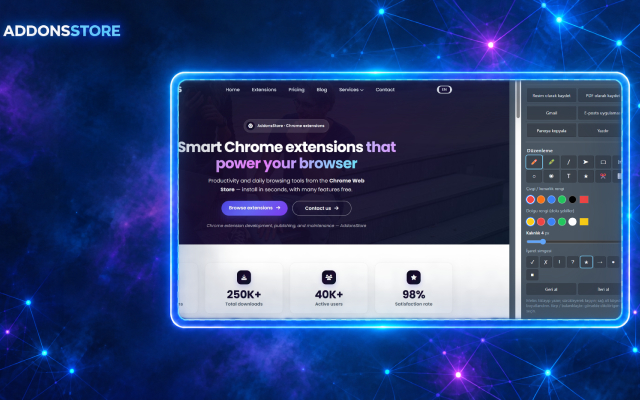
Editing a screenshot with text, shapes, and blur in Pro Shot
Annotate, highlight, and blur before exporting
Editor

Edit before the file exists

The built-in editor is where Pro Shot differs from one-click capture tools. Add context with text and arrows, highlight what matters, blur anything sensitive, then choose your output format — the edited image is the single source of truth that goes to disk.

Because the editor runs in the same preview window as the export options, there's no round-trip to an external app. What you annotate is what you save.

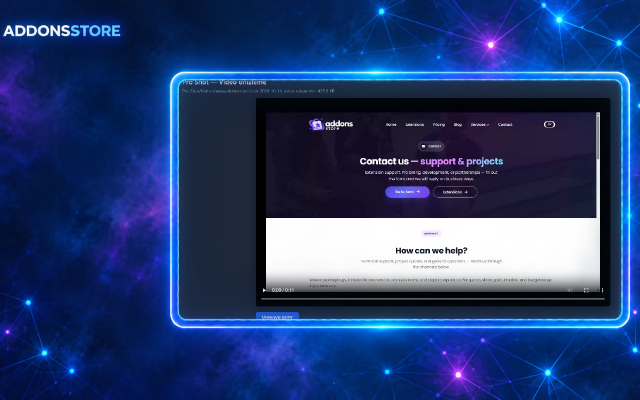
Recording the current tab, a window, or the entire screen
Record a tab, a window, or the whole screen
Recorder

Screenshots and video in one tool

Switch from stills to motion without changing extension. Record the current tab when only the page matters, pick a window for focused tutorials, or capture the entire screen for full workflow demos. Chrome's source picker handles the selection, so nothing is recorded without your consent.

Recordings are processed locally and saved to your Downloads folder — no cloud upload, no third-party server, no account.

From screen to share in four steps

Capture → edit (annotate & blur) → pick PNG, JPEG, or PDF → export, email, or record video.

1. Open the page

Navigate to the page you want to capture or record — any HTTP/HTTPS site works.

2. Pick a mode

Visible area, full page, or region select — or hit record for tab, window, or full screen.

3. Edit & annotate

Add text, shapes, and highlights; blur sensitive info; crop and fine-tune before saving.

4. Export or share

Save as PNG, JPEG, or PDF — or print, email, copy to clipboard, or record video.

FAQ

Frequently asked questions

Screenshots, editing, blur, export formats, screen recording, shortcuts, and privacy — answered in one place.

Visible area grabs exactly what's on screen right now. Full page automatically scrolls and stitches the entire webpage into one image. Region select lets you draw a custom rectangle around any part of the page for a precise crop.

Yes. The preview window is a real editor: add text, notes, shapes, and arrows; highlight important details; blur or hide sensitive information; and crop or resize before saving. No external editor needed.

In the editor, select the blur tool and drag over any area you want to obscure — passwords, emails, order numbers, personal data. The blur is applied to the exported image, so the hidden content never leaves your browser.

Screenshots can be saved as PNG (lossless, best for UI and text), JPEG (smaller files), or PDF (print-ready reports and invoices). You can also print directly, send via email, or copy to clipboard.

Yes. Pro Shot records the current tab, a selected window, or your entire screen. Chrome's own source picker handles the selection each time you start a recording, so nothing is captured without your explicit consent.

Yes. Assign custom shortcuts for visible area, full page, and region capture in the extension settings. Trigger them from any page without opening the toolbar popup.

No. All capture, editing, and export run locally in Chrome. Screenshots and videos stay on your device unless you choose to export, download, email, or share them. See the extension privacy disclosure on the Chrome Web Store for permission details.

Chrome internal pages — chrome://, the Chrome Web Store, and certain browser settings pages — cannot be captured due to browser security restrictions. This is a Chrome limitation, not a Pro Shot one. Any normal HTTP/HTTPS page works.

Yes. Core capture, editing, export, and recording features are available on the free tier with no account, no watermarks, and no hidden fees. Pro may add higher limits or priority support — compare plans on the pricing page.

The extension UI follows your browser language where supported. Turkish and other users can capture and export content from any language page — text rendered on screen is captured as an image, so non-Latin scripts and accented characters are preserved.
Our tools

Free Chrome Extensions

Approved Google Chrome extensions for workflow, productivity, and everyday browsing. Each tool has its own store listing.
X Unfollow AI

Web Table to Excel Exporter — Excel, CSV & JSON

Select any table or list, preview and filter data, reorder columns, then export to Excel, CSV, or JSON. Settings, dark mode, and export history built in.
Details Free
Pro Shot — Screenshot & Screen Recorder

Pro Shot — Screenshot, Screen Recorder & Full Page Capture

Capture visible area, full page, or region screenshots; edit with text, shapes, and blur; export as PNG, JPEG, or PDF. Plus screen recording for tab, window, or entire screen.

Details Free

Free to install

Get Pro Shot

Capture screenshots (visible, full page, region), edit with text, shapes, and blur, export as PNG, JPEG, or PDF — and record your tab, window, or entire screen. Free, private, and no account required.

Add to Chrome — Free All extensions Support